
Spotify Premium APK on TV & FireStick — Three Ways to Install It
Your living room can become a concert hall — but the official Spotify app doesn't always deliver the experience you want. This guide covers three tested methods for sideloading the Spotify Premium APK onto Amazon FireStick, Fire TV, Android TV (Sony, Philips, TCL), and smart TVs running FireOS. Every method is explained at a technical level so you understand exactly what you're installing and why.
Already on Android? The Android APK guide is the simplest starting point. For the big screen, read on.
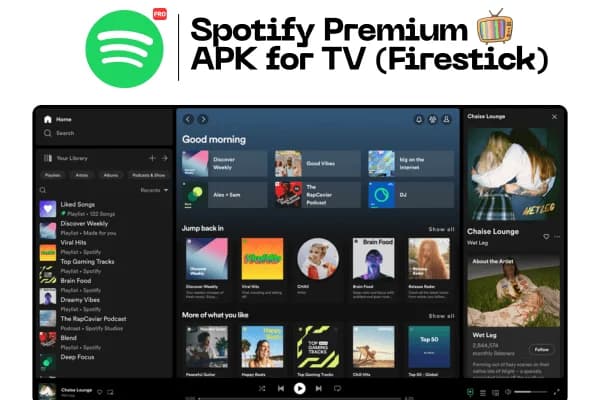
Choose Your Installation Method
All three methods install the same APK. Pick the one that matches your technical comfort level and available devices.
Downloader App
Difficulty
Beginner
Requires PC
No
Speed
Fast
Best For
First-time users
Install the Downloader app from the FireStick App Store then browse directly to the APK download URL.
Apps2Fire (Android Phone)
Difficulty
Moderate
Requires PC
No
Speed
Very Fast
Best For
Android phone users
Push the APK wirelessly from your Android phone to your FireStick using the Apps2Fire app.
ADB Wireless (PC/Mac)
Difficulty
Advanced
Requires PC
Yes
Speed
Fastest
Best For
Power users & developers
Use Android Debug Bridge from your computer for the cleanest, most reliable binary transfer.
What You Unlock on Your TV
Party Mode Audio
Fill the room with 320kbps, ad-free music — perfect for gatherings, dinners, or workout sessions in your living room.
Cinematic Now Playing
Spotify's Now Playing screen shows album art at full 1080p resolution on your TV — a genuine visual upgrade from any phone screen.
Phone-as-Remote (Spotify Connect)
Control what plays on your TV from your phone's Spotify app. Browse, queue, and skip using touch — no remote fumbling required.
Hi-Def Audio via HDMI eARC
With the right setup, the APK's unlocked bitrate passes through your TV's HDMI eARC port directly to your soundbar at full fidelity.
Podcast & Playlist Access
Your entire library — playlists, podcasts, liked songs, and made-for-you mixes — syncs instantly from your account.
Zero Ad Interruptions
Unlike the free Spotify tier on official TV apps, the modded APK removes all audio and banner ads, keeping the listening experience clean.
Method 1: Downloader App (Recommended for Beginners)
Everything happens on your FireStick — no computer required. This method works on all Fire TV devices including FireStick 4K, 4K Max, Fire TV Cube, and FireStick Lite.
Enable Apps from Unknown Sources
Navigate to Settings → My Fire TV → Developer Options. Toggle 'Apps from Unknown Sources' to ON. On newer FireOS versions, you may need to also enable 'ADB Debugging'. This is a one-time step that unlocks all three installation methods below.
Install the Downloader App
Return to the FireStick home screen. In the search bar, type 'Downloader' and install the orange-icon app by AFTVnews. This free utility includes a basic web browser that can download any file directly to your FireStick, bypassing the App Store entirely.
Enter the APK Download URL
Open Downloader → tap the URL bar → navigate to the Spotifull.com Android download page. Tap the download button and the APK will transfer directly to your device. The download typically takes 30–60 seconds on a standard home Wi-Fi connection.
Install the APK
Once the download is complete, Downloader automatically prompts you to install the file. Tap 'Install', wait for the process to complete (15–20 seconds), then tap 'Open'. Log in with your Spotify account and enjoy the ad-free experience.
Method 2: ADB Wireless (Cleanest Binary Transfer)
Android Debug Bridge (ADB) is the same tool Android developers use to deploy apps during testing. It performs a byte-for-byte transfer with CRC verification, eliminating any risk of corruption during download. This is the method used by our technical team in all benchmark testing.
Enable ADB Debugging on FireStick
Settings → My Fire TV → Developer Options → ADB Debugging: ON. Note your device's IP address: Settings → My Fire TV → About → Network.
Connect from Your Computer
Open Terminal (Mac) or Command Prompt (Windows). Run: adb connect <your-firestick-ip>:5555. Accept the 'Allow USB Debugging' prompt on your TV.
Push the APK
Run: adb install /path/to/spotify-premium.apk. ADB transfers and installs the binary in one step with full integrity verification. No Downloader app required.
Launch and Log In
The Spotify icon will appear in your Apps section. Open it, log in, and use Spotify Connect from your phone for a seamless remote-control experience.
ADB is pre-installed on Mac (Homebrew: brew install android-platform-tools) and available as a standalone Windows download. No Android Studio required.
Optimizing Your TV Audio Setup
HDMI eARC & Audio Pass-Through
To maximize the APK's unlocked 320kbps stream, connect your FireStick to your TV's HDMI eARC port (usually labeled HDMI 1 or ARC on the back). Set your TV's audio output to "Pass-through" or "Bitstream". This routes the audio signal directly to your AV receiver or soundbar without the TV internally resampling it to 48kHz PCM stereo. The resulting audio chain preserves the full dynamic range of high-bitrate Spotify tracks.
Mastering Spotify Connect for TV Control
Spotify Connect is built into the server-side Spotify platform — it works even with a free account and is unaffected by the APK mod. Once the app is running on your TV, open Spotify on your phone and tap the "Connect to a Device" speaker icon in the Now Playing bar. Your FireStick will appear within 1–2 seconds. From here, your phone controls everything: search, queue management, volume, and skip — all via touch while your TV plays uninterrupted. This is the intended TV experience.
FireStick Storage Management
FireStick Lite and standard FireStick models ship with only 8GB of storage, of which about 5GB is available after FireOS. Spotify's audio cache grows aggressively on TV because the app pre-buffers several tracks ahead. We recommend a monthly cache clear: Settings → Applications → Manage Installed Applications → Spotify → Clear Cache. Do not tap "Clear Data" — that will log you out and delete downloaded playlists.
Apps2Fire: Best Method for Android Phone Users
If you already have the Spotify APK on your Android phone, install Apps2Fire from the Google Play Store. It scans your phone for installed APKs and displays them in a list. Select Spotify, tap "Install on Fire TV", and the app transfers wirelessly over your local network in under 30 seconds. No download URL needed. Apps2Fire uses ADB under the hood but wraps it in a one-tap interface — no terminal commands required.
Fire TV & Smart TV Compatibility Tier List (2026)
Our team benchmarked the APK across the Amazon and Android TV ecosystem. Results reflect installation ease and streaming stability:
Fire TV Stick 4K Max (Gen 1 & 2)
Wi-Fi 6 support delivers instant buffer-free loading. 16GB storage eliminates cache issues. Best overall TV experience.
Fire TV Cube (All Generations)
The Cube's octa-core processor handles the APK with zero lag. Ideal for home theater setups with Alexa voice control.
Android TV (Sony / Philips / TCL)
Native Android environment makes installation seamless via USB stick or Files app. Better D-pad navigation than FireOS.
Fire TV Stick 4K (1st Gen)
The 8GB storage requires regular cache clearing. Otherwise performs well for audio-only use.
Standard FireStick (3rd Gen HD)
Adequate for daily music over Wi-Fi. Disable background animations for best app stability.
FireStick Lite
Works but is RAM-constrained (1GB). Close all background apps before launching Spotify to prevent OOM crashes.
TV & FireStick — Frequently Asked Questions
Detailed answers to every common question about Spotify on the big screen.